Appearance
Appearance is part of Settings. Open lower-left avatar menu, Settings, Appearance page.
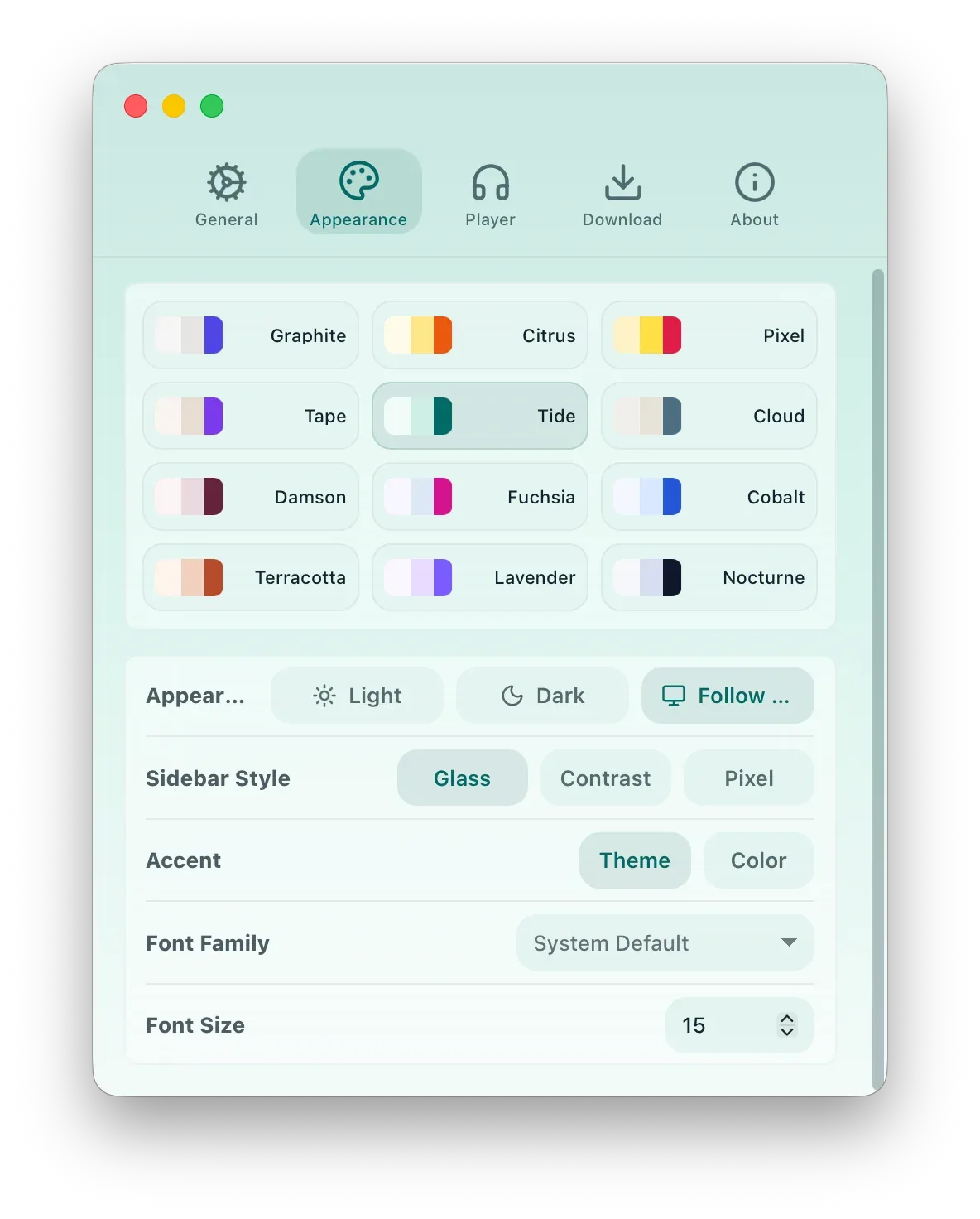
Appearance Settings
Section titled “Appearance Settings”| Setting | Result |
|---|---|
| Theme pack | Changes the overall color style. |
| Light / Dark / Auto | Switches brightness mode or follows the system. |
| Accent color | Changes highlighted controls and key interactive states. |
| Font | Changes the interface font when available. |
| Font size | Adjusts text size for long-term reading comfort. |
| Sidebar style | Changes the look of the main sidebar when supported. |
| Pet | Opens pet-related customization through Pet Gallery. |
Theme Packs
Section titled “Theme Packs”Theme packs affect XiaDown surfaces consistently, including the app documentation view. When documentation is opened inside XiaDown, the app passes current language, light/dark mode, and theme into the documentation page so it visually matches the product.
Light, Dark, and Accent
Section titled “Light, Dark, and Accent”Use light mode for bright environments, dark mode for low-light environments, or auto mode to follow the system. Accent color affects selected states, important buttons, links, and focus highlights.
Font and Size
Section titled “Font and Size”If text feels too dense or too large, adjust font size here. A font change applies to the app interface and helps make long task lists, tables, and documentation easier to read.
Pets are also part of appearance. They appear in the lower-left avatar, empty states, and running states. Open Pet Gallery to switch built-in pets or import online and local pet packages.