
Getting Started
XiaDown is an online music player and a dual-engine video downloader.
XiaDown started as a tool for video creators who wanted to find background music on YouTube Music and download the right track as audio for their own videos. That origin explains why XiaDown combines two core abilities: online music playback and media downloading.
Around those two abilities, and around the workflow of creators, XiaDown later added YouTube Live and local music playback, browser-based sniffing downloads, dependency management for YT-DLP, FFmpeg and Bun, and site-specific App Sessions.
The product is designed as a tool: it should be reliable when you need it, and quiet when you do not. Future updates will continue along online music, video downloading, and creator workflow.
What You Can Do
Section titled “What You Can Do”- Video downloads: paste links and save videos, audio, subtitles, covers, playlists, and collections through YT-DLP. XiaDown supports direct download, quick download, custom download, batch download, and playlist download. For sites that require sign-in, sign in through App Sessions first, then download with your own account access.
- Sniffing downloads: use a real browser session to capture media that normal link parsing cannot find. Open a page, play the media, finish sign-in or verification, then filter, preview, and download videos, audio, live streams, HLS manifests, subtitles, images, or API resources.
- YouTube Music: use XiaDown as a desktop YouTube Music client with Home, Explore, Charts, History, Search, playlists, followed artists, liked songs, queue, lyrics, audio/video switching, downloads, equalizer, visualization, romanized lyrics, and pinyin lyrics.
- YouTube Lo-Fi Live: play built-in YouTube Live radio channels for focus or background listening. You can browse groups, view live status, shuffle channels, create your own groups, and add favorite YouTube Live channels.
- Library management: completed downloads, sniffing tasks, transcodes, and imported content are collected in Tasks and Files. You can preview videos, audio, images, and subtitles, batch delete, inspect file information, transcode again, or repair missing file locations.
- File transcoding: convert local files with FFmpeg. XiaDown includes common video presets for MP4, MOV, MKV, and WebM, and audio presets for MP3, M4A, OGG, FLAC, and WAV. Download tasks can also transcode automatically after completion.
- Automatic maintenance: XiaDown checks app updates, manages YT-DLP, FFmpeg, and Bun installation and updates, and keeps Listen live-channel data maintained. Update notices appear from the lower-left menu and Settings.
- Appearance customization: keep a consistent Windows and macOS experience while changing theme packs, light/dark mode, accent color, font, font size, sidebar style, and pets.
Download and Install
Section titled “Download and Install”macOS users can install with Homebrew:
brew install --cask arnoldhao/tap/xiadownOr download an installer directly:
| Platform | Architecture | Package | Download |
|---|---|---|---|
| macOS | Apple silicon | DMG | Download |
| macOS | Intel | DMG | Download |
| Windows | x64 | Installer | Download |
| Windows | x64 | Portable | Download |
On macOS, open the DMG and drag XiaDown.app to Applications. On Windows, run the installer or unzip the portable package and launch XiaDown.
First Launch
Section titled “First Launch”The first launch opens a welcome guide. Finish these steps before entering the main app:
- Choose the interface language.
- Choose network access: no proxy, system proxy, or configure a manual proxy later in Settings.
- Choose theme and appearance preferences.
- Click one-click install to install required tools.
- Wait until YT-DLP, FFmpeg, Bun, and related tools are available.
- Enter XiaDown.
Proxy settings affect updates, connection checks, downloads, sniffing, and online music. If a target site cannot be reached, check the proxy first.
Main Pages
Section titled “Main Pages”| Page | Entry | Purpose |
|---|---|---|
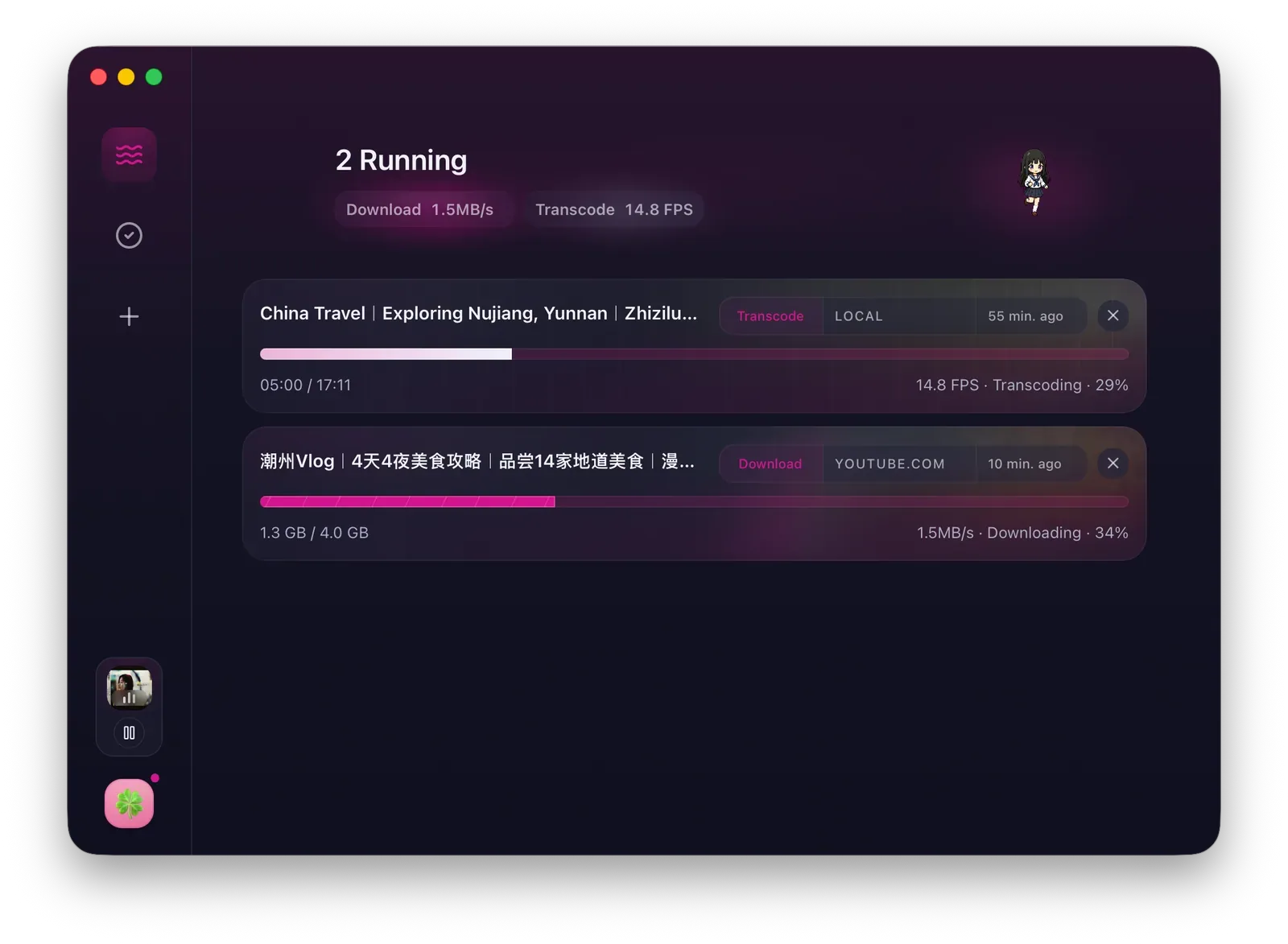
| Running | Wave icon on the left | View download and transcode progress, or create a task from the empty state. |
| Tasks and Files | Check icon on the left | Manage completed, failed, or canceled tasks and output files. |
| New Task | Plus icon on the left | Create download, sniff, or transcode tasks. |
| Listen | Mini player in the lower left | Play live radio, YouTube Music, and local audio. |
| Sniff Desk | Avatar menu in the lower left | Handle web resources that normal downloads cannot parse. |
| App Sessions | Avatar menu in the lower left | Manage signed-in website sessions for gated content. |
| Settings | Avatar menu or system tray menu | Configure folders, browser, sniffing scope, concurrency, and tool status. |
| Pet Gallery | Avatar menu in the lower left | Switch or import pets. |
Your First Task
Section titled “Your First Task”- Click the plus icon on the left.
- Choose Download, Sniff, or Transcode.
- Paste a link or select a local file.
- Choose quality, subtitles, transcode options, or other settings shown on the page.
- Click Start.
- Return to Running to watch progress.
- After completion, open Tasks and Files to preview, open the folder, or continue processing.